
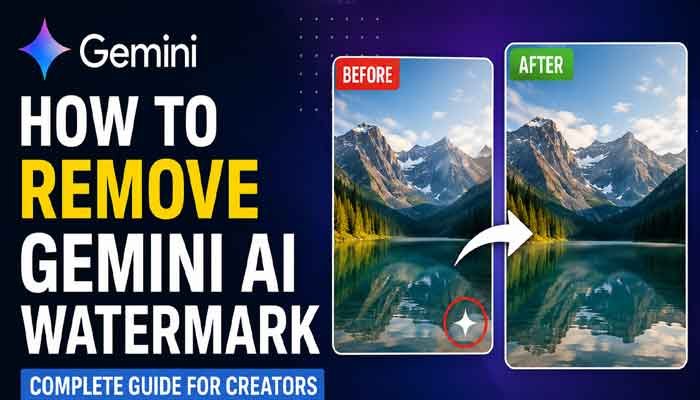
How to remove Gemini AI watermark is a common question among bloggers, YouTubers, designers and content creators who use Google Gemini to generate AI images.
If you’re wondering how to remove Gemini AI watermark from an older image, you have several options depending on where the watermark appears.
If you have recently used Google Gemini to create an AI image, you may have noticed a small Gemini sparkle or AI watermark in one of the corners. For casual use, it may not matter much. But for bloggers, YouTubers, website owners and social media creators, even a small logo can make an otherwise polished visual look less professional.
How to Remove Gemini AI Watermark From Existing Images
The good news is that Google’s approach to Gemini image watermarks has changed. In 2026, Google provides cleaner image-generation options in certain products and plans, while continuing to use SynthID, an invisible digital watermark designed to identify content created or edited by Google AI.
That distinction is important because removing a visible logo is not the same thing as removing Google’s invisible AI identification technology.
In this guide, we’ll look at the practical ways creators can get a clean-looking Gemini image, what works with older images, and which method makes the most sense for blogs, thumbnails and social media content.
What Is the Gemini AI Watermark?
The small sparkle-style logo found on some Gemini-generated images is a visible watermark. Google uses it as a transparency signal so viewers can recognize that an image was created or edited using Google AI.
Google also uses SynthID, which works differently. It embeds an imperceptible digital signal into AI-generated content. Unlike a normal logo sitting on top of an image, SynthID is designed to remain detectable even after common changes such as resizing, compression or color adjustments.
So there are essentially two different things to understand:
- Visible Gemini watermark: The logo or sparkle that you can see.
- Invisible SynthID watermark: A digital signal embedded into the content.
Removing the visible logo does not necessarily remove SynthID.
Can You Turn Off the Gemini Watermark?
This is where a lot of older tutorials become confusing.
Google has changed its watermark policy and product availability over time. According to Google’s current information, images generated by Google AI Ultra subscribers and images created through Google AI Studio can be produced without the visible watermark. However, Google continues to maintain invisible SynthID watermarking for AI-generated content.
Read Also This : 10 Best AI Study Tools for Students in 2026
How to Remove Gemini AI Watermark Without Ruining Image Quality
This means there isn’t one universal “turn watermark off” switch that works for every Gemini user.
If you’re using a Gemini plan or product that still adds the visible logo, you have several alternatives.
Method 1: Generate the Image Without the Visible Watermark
For creators who regularly produce AI images, this is the cleanest approach.
Instead of generating an image in a Gemini setup that adds the visible logo, use a Google AI environment where Google provides watermark-free visible output.
Google AI Studio
Google’s current documentation specifically identifies Google AI Studio as a place where the visible watermark is not added to generated images.
The basic workflow is:
- Open Google AI Studio.
- Sign in with your Google account.
- Select an available image-generation model.
- Write your image prompt.
- Generate the image.
- Download the resulting image.
- Check the final file before publishing it.
This is particularly useful for website owners, designers and content creators who generate images regularly.
The major advantage is that you are avoiding the visible watermark at the generation stage rather than trying to repair the image afterward.
Method 2: Use Google AI Ultra
Google has also introduced a cleaner output option for Google AI Ultra subscribers.
Google says that the visible watermark is removed from images generated by Google AI Ultra subscribers, while the invisible SynthID marker remains.
If you already have access to Ultra, this can be the simplest solution because you can continue working inside Google’s ecosystem without having to manually edit every image.
However, availability and product features can change, so always check the options displayed in your own Gemini account before relying on a particular feature.
How to Remove Gemini AI Watermark From Existing Images
If you’re wondering how to remove Gemini AI watermark from an older image, the best method depends on where the visible watermark appears and how much of the original composition you need to preserve.
Method 3: Crop the Corner
If you already have an older Gemini image containing the visible watermark, cropping is one of the simplest solutions.
For example, if the watermark is located close to the bottom-right edge, you may be able to remove that small section without affecting the main subject.
How to crop the image
- Open the image in your preferred editor.
- Select the Crop tool.
- Remove the smallest possible area containing the visible watermark.
- Make sure the main subject remains properly positioned.
- Export the image at the required resolution.
This works especially well for:
- YouTube thumbnails
- Blog featured images
- Pinterest graphics
- Social media posts
- Website banners
The disadvantage is obvious: cropping reduces the available canvas and may change the original composition.
Method 4: Use an Image Editor for Older Images
If cropping would ruin the composition, you can use an image-editing application to repair the affected area.
Popular options include:
- Adobe Photoshop
- Canva
- Affinity Photo
- Other image-retouching applications
In Photoshop, for example, an editor can select the area around the logo and use tools such as Generative Fill, Healing or Content-Aware techniques to reconstruct the surrounding background.
The result depends heavily on the image.
A watermark placed over a simple sky, wall or plain background is generally easier to repair than one covering someone’s face, hair, clothing or detailed objects.
A better editing workflow
Instead of removing a large section at once, work carefully around the affected area:
- Duplicate the original image.
- Zoom into the watermark.
- Select only the smallest necessary area.
- Reconstruct the background.
- Compare the edited version with the original.
- Check for repeating textures or unnatural edges.
- Export a high-quality final copy.
Always keep the original file separately in case you need to return to it later.
Method 5: Recreate the Image Instead of Editing the Watermark
Sometimes the easiest solution is not to repair the old image at all.
If you still have the original prompt, recreate the scene using a Google AI tool that provides the output you need.
This can actually produce a better result because editing a watermark may introduce artifacts, blurry areas or strange textures.
For example, instead of repairing an old image of a futuristic city, you could reuse the original concept and create a fresh version with a cleaner composition.
You can also improve the prompt at the same time.
For example:
Create a cinematic futuristic city at sunset, wide composition, realistic architecture, detailed reflections, clean sky, professional editorial photography style, 16:9 composition.
A fresh generation gives you the opportunity to improve both the image and the layout.
Can Gemini Remove Its Own Watermark?
This is where many online guides make an important mistake.
Gemini’s image-editing capabilities can modify uploaded images and make substantial changes to objects, backgrounds and other elements. Google has also expanded Gemini’s native image-editing capabilities over time.
However, you shouldn’t assume that simply uploading a watermarked image and writing “remove the Gemini watermark” is an official watermark-removal feature.
For a reliable workflow, it is better to use an approved generation option that doesn’t place the visible watermark in the first place, or use a conventional image editor for legitimate design changes.
What About the Invisible SynthID Watermark?
This is probably the most important part of the entire topic.
Even when the visible Gemini logo isn’t present, Google may still embed SynthID into AI-generated content.
SynthID is designed to be difficult to remove accidentally. Google says it can remain detectable after common transformations such as resizing, recoloring and compression.
Therefore:
No visible Gemini logo does not automatically mean the image contains no AI watermark.
This is intentional. Google uses SynthID as part of its broader effort to make AI-generated content identifiable and improve transparency around how digital media was created.
How to Check Whether an Image Contains SynthID
Google has introduced verification capabilities directly into Gemini.
You can upload an image and ask Gemini something like:
“Was this image created or edited using Google AI?”
Gemini can check for Google’s SynthID watermark and provide information about whether Google AI-generated content is detected.
This is useful when you’re working with an image and aren’t sure about its origin.
Should You Remove the Watermark From a Commercial Image?
This depends on the purpose and the terms applicable to the product or service you’re using.
There is an important difference between:
Removing a visible logo for design purposes
and
Trying to hide the fact that an image was generated by AI.
The second can create transparency and compliance problems, particularly if you’re presenting an AI-generated image as a real photograph or human-created artwork.
For professional publishing, the safest approach is to be clear about the nature of your visuals whenever disclosure is appropriate.
Best Workflow for Bloggers and Website Owners
If you’re using Gemini images for a website such as a news blog, technology site or content publication, I recommend this workflow:
Step 1: Generate the image
Create the image using the Google AI product that best fits your requirements.
Step 2: Check the visible watermark
Before downloading or publishing, inspect all four corners of the image.
Step 3: Choose the cleanest legitimate option
If your available Google AI plan or tool produces images without the visible watermark, use that option.
Otherwise, consider cropping or editing the image where appropriate.
Step 4: Resize the image
Don’t upload an unnecessarily huge image to your website.
Choose a resolution appropriate for the article, featured image or thumbnail.
Step 5: Compress the file
Save the image in a web-friendly format and compress it without destroying visible quality.
Step 6: Rename the file
Instead of:
IMG_2026_001.jpg
use something descriptive, such as:
gemini-ai-watermark-guide-2026.jpg
Step 7: Add descriptive Alt Text
Your Alt Text should describe what the image actually shows.
For example:
Gemini AI generated image showing an AI watermark removal guide
Avoid stuffing keywords into Alt Text simply for SEO.
Don’t Make This Common SEO Mistake
A lot of website owners think removing the watermark automatically makes an image look more “human.”
That’s not how modern AI identification works.
Google’s SynthID system is specifically designed to identify Google AI-generated content even when visible markings aren’t obvious.
For SEO, your priority should be:
- Useful original content
- Accurate image descriptions
- Relevant images
- Good image quality
- Fast loading
- Proper Alt Text
- Original commentary
- Clear authorship
- A good overall user experience
A clean image is useful for presentation, but it isn’t a shortcut to better Google rankings.
Best Image Size for Blog Posts
For a typical website article, you don’t need an enormous 8K image.
A practical workflow is to create the image at a suitable resolution and then optimize it for the actual display size.
For example:
- Featured image: around 1200 × 675 pixels
- Social preview: around 1200 × 630 pixels
- YouTube thumbnail: 1280 × 720 pixels
- Article illustrations: commonly 1000–1600 pixels wide
The exact dimensions should depend on your site’s design and where the image will be displayed.
Final Thoughts
The Gemini watermark situation has changed considerably, so older tutorials can be misleading.
If your goal is a professional-looking image without the visible Gemini sparkle, the best solution is usually to generate the image through a Google AI option that provides clean visible output, rather than repeatedly trying to repair old images.
For existing watermarked images, cropping or careful image editing can work when the watermark is located in an easy-to-reconstruct area.
But remember that the absence of a visible logo does not mean the image is free from Google’s AI identification technology. SynthID is an invisible digital watermark designed to help identify Google AI-generated content.
For bloggers and creators, the smartest strategy is therefore simple: create clean visuals when possible, edit them professionally when necessary, optimize them for the web, and don’t misrepresent AI-generated content as something it isn’t.
Frequently Asked Questions
Can I remove the Gemini watermark for free?
It depends on how the image was generated. Some Gemini products or plans may add a visible watermark, while Google AI Studio and Google AI Ultra currently provide options without the visible watermark.
Does removing the Gemini logo remove SynthID?
No. The visible logo and SynthID are different technologies. Removing or cropping the visible logo does not necessarily remove SynthID.
Can I use Gemini images on my website?
Gemini-generated images can be used for many creative and publishing purposes, but you should always check the current terms and policies applicable to the Google AI product and your specific use case.
Does a watermark affect Google SEO?
A watermark itself is not a magic SEO ranking factor. Image quality, relevance, page experience, descriptive Alt Text and the overall quality of the content are much more important considerations.
Can Gemini detect its own AI-generated images?
Yes. Google provides an image-verification feature in Gemini that can check for signals such as SynthID and provide information about whether content was generated or edited using Google AI.
What is the easiest solution for new images?
For creators who need clean visible output regularly, using a Google AI product or plan that supports generation without the visible watermark is generally easier than editing the logo out of every image.