
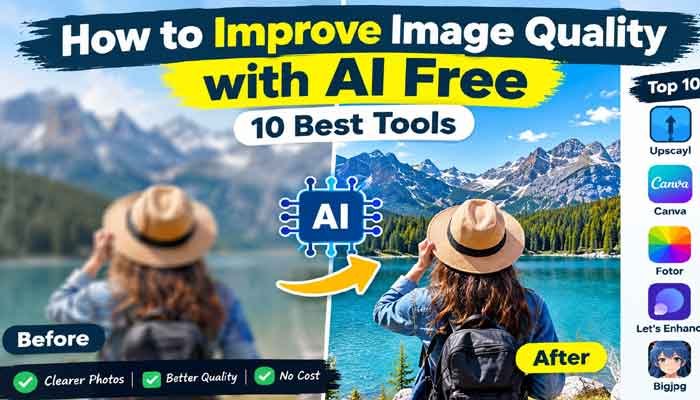
Have you ever taken a great photo, only to discover that it looks blurry, pixelated, or too small when you upload it to your website? This happens more often than you might think. Old family pictures, product photos, social media graphics, and AI-generated images can all lose quality when resized or compressed.
The good news is that you do not always need expensive editing software or professional photography skills to fix the problem. Today, several AI-powered tools can sharpen images, reduce noise, improve lighting, and increase resolution in just a few clicks.
If you are searching for how to improve image quality with AI free, this guide will help you choose the right tool for your needs. We will cover 10 popular options, explain their main features, and show you how to enhance an image without making it look unnatural.
Read Also This : Gemini 4 Argon: Features, How to Use & ChatGPT Comparison
What Does AI Image Enhancement Actually Do?
AI image enhancement uses machine-learning models to analyze an image and estimate how missing or damaged details might look. Depending on the tool, it can improve sharpness, reduce visual noise, restore facial details, correct lighting, or enlarge a low-resolution picture.
Traditional resizing mainly changes an image’s dimensions. AI upscaling goes further by predicting additional details that can make the enlarged image appear clearer.
However, there is one important limitation: AI does not always recover the original details. It may generate plausible-looking textures or alter small features, especially in faces, logos, and text. That is why reviewing the final result is essential.
10 Best Free AI Image Enhancement Tools
Here are ten tools worth considering if you want to improve your photos without immediately paying for professional software. Some offer genuinely free desktop processing, while others provide free access with usage limits or paid upgrades.
1. Upscayl — Best for Unlimited Desktop Upscaling
Website: https://upscayl.org/
Upscayl is a strong option for people who regularly work with low-resolution images and prefer not to pay for every enhancement. Its desktop application is free and open source, and it supports Windows, macOS, and Linux.
The software uses AI models to enlarge images and improve their apparent detail. It also supports batch processing, which is helpful when you have several images to enhance.
Best features:
- Free, open-source desktop application.
- Local processing for supported desktop workflows.
- Batch image upscaling.
- Multiple AI models for different image types.
Best for: Bloggers, designers, AI image creators, and users who want to process many images without recurring online credits.
Keep in mind that your computer needs compatible graphics hardware for the desktop application to work properly.
2. Upscale.media — Best for Quick Online Enhancement
Website: https://www.upscale.media/
Upscale.media is a browser-based tool designed to make low-resolution pictures larger and clearer. You can upload an image, select an available enlargement option, and download the result without installing desktop software.
It supports common image formats, including JPG, PNG, WebP, and HEIC. Available enlargement levels and image-size limits depend on the access option you use.
Best features:
- Simple upload-and-enhance workflow.
- Multiple upscaling options.
- Additional image tools, including sharpening.
- Convenient access through a web browser.
Best for: Users who need a quick fix for a blurry photograph, website image, or social media graphic.
Its free usage has limits, so check the current allowance before processing a large collection.
3. Canva — Best for Social Media and Website Images
Website: https://www.canva.com/features/image-enhancer/
Canva is useful when improving an image is only one part of your workflow. You can enhance a picture, adjust its appearance, add text, and place it directly into a blog thumbnail, Instagram post, or YouTube design.
Canva provides an AI Upscale feature, but availability and usage depend on your account and remaining AI allowance. Its free plan does not mean unlimited access to every AI feature.
Best features:
- AI image upscaling.
- Brightness, contrast, and color adjustments.
- Ready-made social media templates.
- Image editing and design tools in one place.
Best for: Content creators, bloggers, and website owners who want to improve image quality and finish their graphics in the same editor.
For best results, enhance the image first, then review the final design at its intended display size.
4. Adobe Express — Best for Simple Image Editing
Website: https://www.adobe.com/express/
Adobe Express offers a beginner-friendly editing environment for improving and preparing visual content. Depending on the image and features available, you can adjust brightness, contrast, color, sharpness, and other visual settings.
It is especially helpful when an image does not need dramatic restoration but looks slightly dull or poorly balanced.
Best features:
- Accessible online editing tools.
- Color and lighting adjustments.
- Design templates for digital content.
- Easy preparation of graphics for websites and social media.
Best for: Beginners who want to make everyday photo adjustments without learning a complicated editing program.
Some advanced AI features may require a paid plan. Check the current feature availability before choosing it specifically for high-resolution upscaling.
5. Fotor — Best for One-Click Photo Enhancement
Website: https://www.fotor.com/ai-image-enhancer/
Fotor is designed for people who want to improve a photograph without manually changing dozens of settings. Its AI photo enhancer can help improve clarity, lighting, colors, and apparent detail.
The platform supports several common image formats and offers automatic enhancement options. More advanced capabilities may be subject to account, credit, or subscription restrictions.
Best features:
- Automatic photo enhancement.
- Sharpening and clarity improvements.
- Color and lighting adjustments.
- Support for portraits, landscapes, and product photos.
Best for: People who want a straightforward way to improve everyday photographs.
If you are learning how to improve image quality with AI free, Fotor is worth trying on a sample image before deciding whether its free access meets your needs.
6. Pixelcut — Best for Product Photography
Website: https://www.pixelcut.ai/image-upscaler
Product photographs need to look clean and detailed, particularly when they appear on online stores, marketplaces, and promotional graphics.
Pixelcut offers an AI upscaler that increases image resolution and can improve the appearance of product details. Its broader editing features also make it useful for preparing images for commercial-style designs.
Best features:
- Browser-based image upscaling.
- Product image editing.
- Tools for preparing images for online listings.
- A simple workflow for individual images.
Best for: Small business owners, online sellers, and people who create product advertisements.
Pixelcut limits some advanced upscaling features to paid users. Its free usage is more restricted, so check the current limits before relying on it for regular work.
7. Let’s Enhance — Best for Large Images and Printing
Website: https://letsenhance.io/
Let’s Enhance focuses on increasing image resolution while improving the appearance of details. It can be useful when a small image needs to be prepared for a poster, canvas, product design, or another large-format output.
The platform offers different enhancement approaches for photographs, graphics, and other image types. The best setting depends on the original image and how you plan to use it.
Best features:
- AI-powered upscaling.
- Options for different image types.
- Image enhancement for print workflows.
- Tools for preparing larger visual assets.
Best for: Designers, photographers, and businesses that need higher-resolution files.
Free credits and download conditions may apply, including watermark restrictions. Review the current plan details before using the service for a commercial project.
8. Remini — Best for Portraits and Old Family Photos
Website: https://remini.ai/
Portraits often need a different approach from landscapes or product images. When a face is small, soft, or slightly blurry, a general upscaler may not improve the most important details enough.
Remini focuses on photo and face enhancement. It is worth considering for old family pictures, portraits, and selfies that need clearer-looking facial details.
Best features:
- Face-focused enhancement.
- Portrait improvement.
- Restoration options for certain older images.
- Mobile-friendly photo enhancement workflows.
Best for: Users who mainly want to improve people’s photographs rather than enlarge illustrations or graphics.
Free access may include advertisements, usage limits, or subscription prompts, depending on the version and region. Always compare the enhanced face with the original to make sure the person’s features have not changed noticeably.
9. Bigjpg — Best for Illustrations and Anime Images
Website: https://bigjpg.com/
Not every image is a photograph. Illustrations, anime artwork, and digital drawings can lose their clean edges when enlarged using ordinary resizing methods.
Bigjpg offers AI image enlargement with options intended for different image styles. It can be a useful choice when preserving the general appearance of illustrated artwork matters more than enhancing photographic textures.
Best features:
- AI-powered image enlargement.
- Options for artwork and photographs.
- Browser-based processing.
- A straightforward interface.
Best for: Digital artists, anime fans, and users who want to enlarge illustrated images.
Free processing allowances and waiting times can vary. Try a small image first and inspect the edges for unwanted artifacts.
10. OpenPixels — Best for Privacy-Focused Enhancement
Website: https://openpixels.app/
OpenPixels is an option worth exploring if you prefer to process images on your own device. Its browser-based tools are designed to handle tasks such as upscaling, noise reduction, and photo restoration locally, where supported by your browser and hardware.
Local processing can reduce the need to upload personal pictures to an external service.
Best features:
- Browser-based image enhancement.
- Upscaling and noise reduction.
- Local processing after the required models are available.
- No-upload workflow for supported operations.
Best for: Users who value privacy and want to enhance personal photos without sending them to an online image-processing server.
For sensitive images, verify that the particular operation is running locally before using it. Browser compatibility and processing speed can also vary.
Comparison: Which AI Image Enhancer Should You Choose?
| Tool | Best use | Free access |
|---|---|---|
| Upscayl | Bulk upscaling | Free desktop app |
| Upscale.media | Quick online enhancement | Limited free use |
| Canva | Social media designs | Free plan with AI allowance |
| Adobe Express | Basic photo editing | Free plan; feature limits |
| Fotor | Automatic enhancement | Limited free access |
| Pixelcut | Product photos | Limited free use |
| Let’s Enhance | Large images and printing | Limited credits |
| Remini | Portraits and faces | Restrictions may apply |
| Bigjpg | Anime and illustrations | Limited free processing |
| OpenPixels | Privacy-focused enhancement | Free local tools |
Free access can change over time. Some services limit the number of images, resolution, processing speed, or downloadable output. Check each official website for the current conditions.
How to Improve Image Quality with AI Free: Step-by-Step Guide
You do not need to be a professional editor to get a noticeable improvement. The key is choosing a tool that matches the problem and checking the output before downloading it.
Step 1: Choose the Original Image Carefully
Start with the best version of your image that you can find. If the same picture exists in several sizes, use the largest original file rather than a screenshot or a heavily compressed copy.
AI tools generally perform better when the source contains some genuine detail.
Step 2: Identify What Needs Fixing
Look closely at the image and identify the main problem.
- Blurry image: Try a sharpening or deblurring feature.
- Small image: Use an AI upscaler.
- Grainy photo: Look for noise reduction.
- Dark image: Adjust exposure and shadows.
- Old photograph: Choose a restoration-focused tool.
- Soft facial details: Try a portrait enhancer.
Selecting the correct feature is more useful than applying every available effect.
Step 3: Upload the Image or Open a Desktop Tool
If you want a browser-based option, try Upscale.media or Fotor. If you prefer local processing and have a compatible computer, consider Upscayl.
Upload your image only after reviewing the service’s privacy policy, especially if it contains personal or confidential information.
Step 4: Select a Suitable Enhancement Level
Begin with a moderate enlargement, such as 2x, when that option is available. Higher enlargement levels can be useful for certain images, but they may also introduce invented details, unnatural textures, or strange edges.
Avoid assuming that a larger output file automatically means a better image.
Step 5: Compare the Before and After Results
Zoom in on faces, fingers, hair, text, logos, and object boundaries. Check whether the image looks genuinely clearer or simply more artificial.
If the first result looks too smooth or over-sharpened, try a different model or reduce the enhancement strength where the tool permits it.
Step 6: Download and Save the Final Version
Save the improved image in an appropriate format. JPG is often suitable for photographs, while PNG can be useful for graphics that need clean edges or transparency.
Keep a copy of the original file. This allows you to compare results later or try another tool without losing your starting point.
Tips for Getting Better Results from Free AI Tools
If your goal is to improve image quality with AI free, these practical tips can help you get more consistent results.
Use the right tool for the image. A portrait enhancer may work well on faces but produce less convincing results on text-heavy graphics. An illustration-focused upscaler may be better for digital artwork.
Do not overprocess the photo. Too much sharpening can create bright outlines around objects, while aggressive noise reduction can remove natural skin and fabric textures.
Check small text carefully. AI may change letters, numbers, and logos. Avoid using an enhanced image as the only source for important text or product labels.
Compare at the intended size. An image that looks good on a phone screen may not hold up when printed on a large poster.
Check usage rights. If you are using images for a business or website, review both the source image’s copyright and the enhancement tool’s commercial-use terms.
Protect your privacy. For sensitive photographs, prefer a verified local-processing workflow rather than uploading them to an unfamiliar website.
Frequently Asked Questions
1. Can I improve image quality with AI for free?
Yes. Several tools provide free image enhancement or upscaling. Upscayl offers a free desktop application, while online services such as Upscale.media and Fotor provide free access with possible limits. The best option depends on your image and how often you need to use it.
2. What is the best free AI image enhancer?
Upscayl is a strong choice for free desktop upscaling. Upscale.media is convenient for browser-based enlargement, Canva is useful for design work, and Remini is worth considering for portrait enhancement. No single tool is best for every image.
3. Can AI make a blurry picture clear?
AI can improve some blurry pictures, particularly when the image still contains useful details. However, a severely out-of-focus photo may remain imperfect. Enhancement software can estimate missing details, but it cannot guarantee recovery of what the camera never captured.
4. How can I increase image resolution without losing quality?
Use an AI upscaler rather than simply stretching the image in a basic editor. Start with the highest-quality original available, select a suitable enlargement level, and inspect the result for artifacts. Even with AI, some detail changes are possible.
5. Is Upscayl completely free?
Upscayl’s desktop application is free and open source. Its local workflow is a useful option for people who want to upscale images without paying for per-image processing. Cloud-based offerings and other related services may have separate conditions.
6. Can I use AI-enhanced images on my website?
Generally, yes, if you have the necessary rights to the original image and comply with the tool’s terms. Before publishing, check image quality, commercial-use restrictions, privacy requirements, and whether the enhancement has altered any important details.
7. Which AI tool is best for old photos?
Remini and Fotor are worth trying for portrait enhancement and older photographs. For more general restoration, compare the available repair and sharpening features across different tools. Always retain the original scan because AI restoration can change facial details.
Final Verdict
Improving a low-quality image no longer requires expensive editing software or advanced technical knowledge. The right AI tool can help sharpen a photograph, reduce noise, improve lighting, or create a larger image for your website.
If you need unlimited desktop upscaling without recurring credits, start with Upscayl. For quick browser-based results, try Upscale.media. If your main goal is designing website thumbnails and social media graphics, Canva may fit your workflow better.
Ultimately, the best way to improve image quality with AI free is to start with a good source image, choose a tool designed for your specific problem, and check the final result carefully. Try two tools on the same image before deciding which one delivers the most natural-looking improvement.